How to Free Up Space on Windows 11 Without Deleting Anything You Want
THE ANSWER
Your biggest space eater is probably your Downloads folder, and Storage Sense skips it by default. Open Settings › System › Storage to see for yourself, then either clean Downloads by hand or change the one Storage Sense rule nobody mentions.
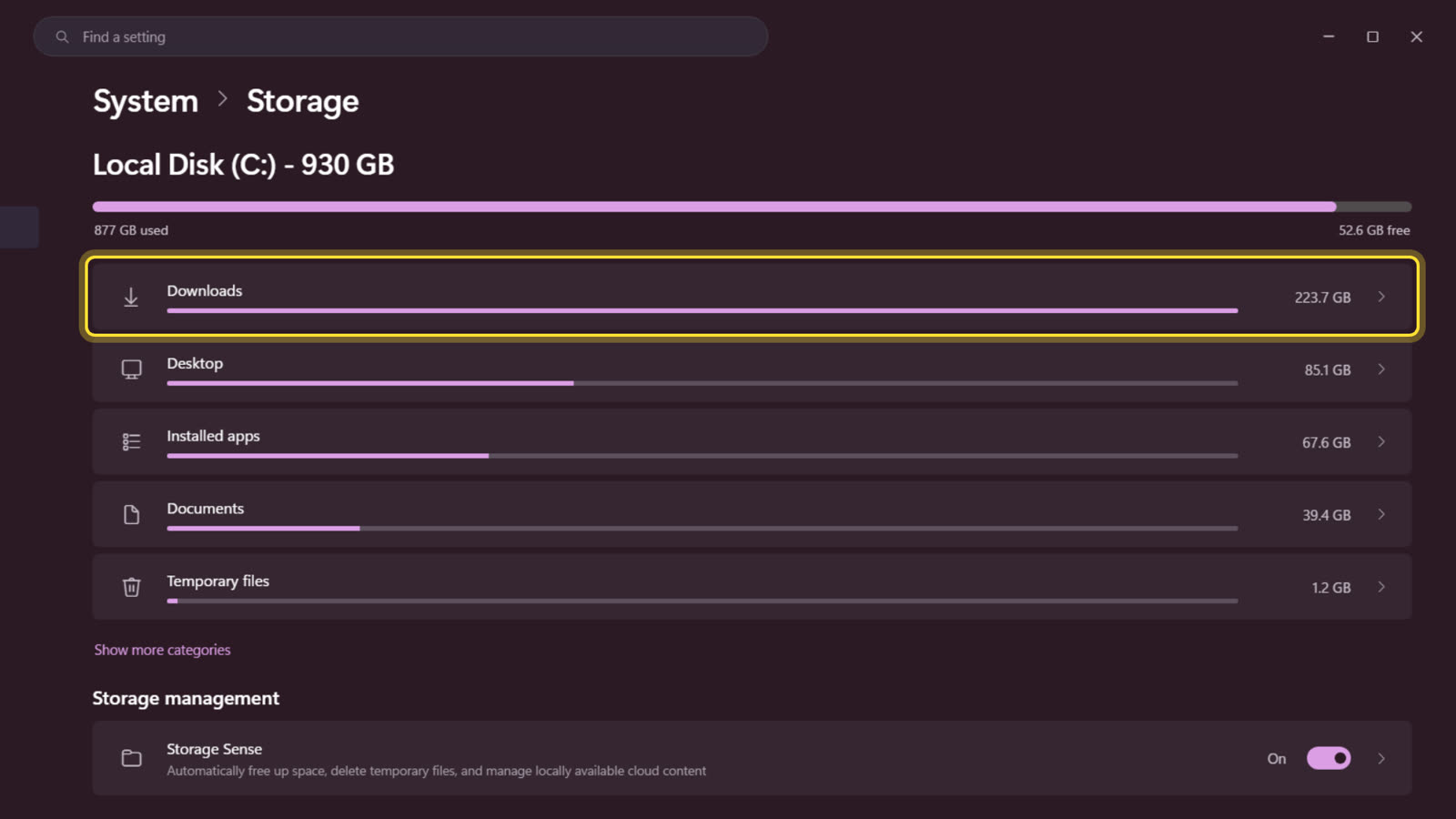
On the machine we recorded this on, Windows reported 877 GB used of 930. The breakdown told the real story: Downloads alone held 223.7 GB, a quarter of the entire drive, while Temporary files held 1.2 GB. Storage Sense had been on the whole time. It just is not allowed to touch Downloads unless you say so.
Why your drive fills up in the first place
Almost everything you pull from the internet lands in Downloads: installers, zip archives, PDFs, video files, that 8 GB game patch you grabbed manually once. Here is the mechanism that makes it grow forever: an installer is useless the moment the install finishes, but nothing in Windows ever removes it. The file did its job in thirty seconds and then sits there for years. Multiply that by every app you have ever installed and every archive you have ever opened, and the folder quietly becomes the biggest thing on the disk.
Windows will not clean it for you because it cannot know what is disposable. A cleanup tool can safely assume a thumbnail cache is rebuildable. It cannot assume your tax documents PDF in Downloads is. So the folder gets treated as user content, every automatic tool routes around it, and the problem compounds.
The measured breakdown from the machine in the video, so you can see the shape of a real drive:
Downloads 223.7 GB ← a quarter of the drive
Desktop 85.1 GB
Installed apps 67.6 GB
Documents 39.4 GB
Temporary files 1.2 GB ← where most guides tell you to look
That last line is the punchline. The standard advice, clear your temporary files, was worth 1.2 GB on this machine. The folder nobody mentions was worth 223.7 GB. Check your own breakdown before trusting any guide, including this one.
The steps
-
Open the storage breakdown
Open Settings › System › Storage. Give it a minute; the category sizes calculate while you watch.
-
Read where the space actually went
The bars under your drive show the truth. Look at the number next to Downloads before you spend an hour cleaning anything else.
-
Clear temporary files
Open the Temporary files category, review what is checked, and remove it. Windows Update leftovers and thumbnails live here.
-
Turn on Storage Sense and configure it
Back on the Storage page, switch Storage Sense on, then click into it. Set the Recycle Bin rule to 30 days.
-
Make the Downloads decision
The Downloads rule defaults to Never, which is why the folder grows forever. Two honest options: leave it on Never and clean the folder yourself (open Downloads in File Explorer, sort by size, delete the old installers), or set it to clean files unopened for 30 or more days. The second option deletes files automatically. Only choose it if nothing precious lives in Downloads.
What each method is actually worth
Measured on the machine from the video. Your numbers will differ; the proportions usually will not.
| Method | Freed here | Automatic? | Risk to your files |
|---|---|---|---|
| Clear temporary files | 1.2 GB | Yes, once Storage Sense is on | None. Windows can rebuild everything it removes |
| Storage Sense on default settings | 1.2 GB plus emptied Recycle Bin | Yes, but only when the drive runs low | None. It never touches Downloads |
| Storage Sense with the Downloads rule set to 30 days | Up to 223.7 GB over time | Yes | Real. It deletes unopened files without asking |
| Cleaning Downloads by hand, sorted by size | 223.7 GB | No. About ten minutes | Low. You approve every deletion |
| Moving Downloads to an external drive | 223.7 GB | No. One copy session | None. Nothing is deleted |
| Installing a third party cleaner app | The same 1.2 GB Windows already manages | Yes, plus a permanent background process | Low, but it avoids Downloads for the same reason Windows does |
How Storage Sense actually works
Storage Sense is a janitor with a strict contract. When it runs, it only touches things Windows can regenerate or that you have already thrown away: temporary files the system created, and the Recycle Bin after your chosen number of days. Both are safe by definition, the first because Windows can rebuild them, the second because you already deleted those files once.
Two consequences follow from that contract, and they explain most "Storage Sense did nothing" complaints:
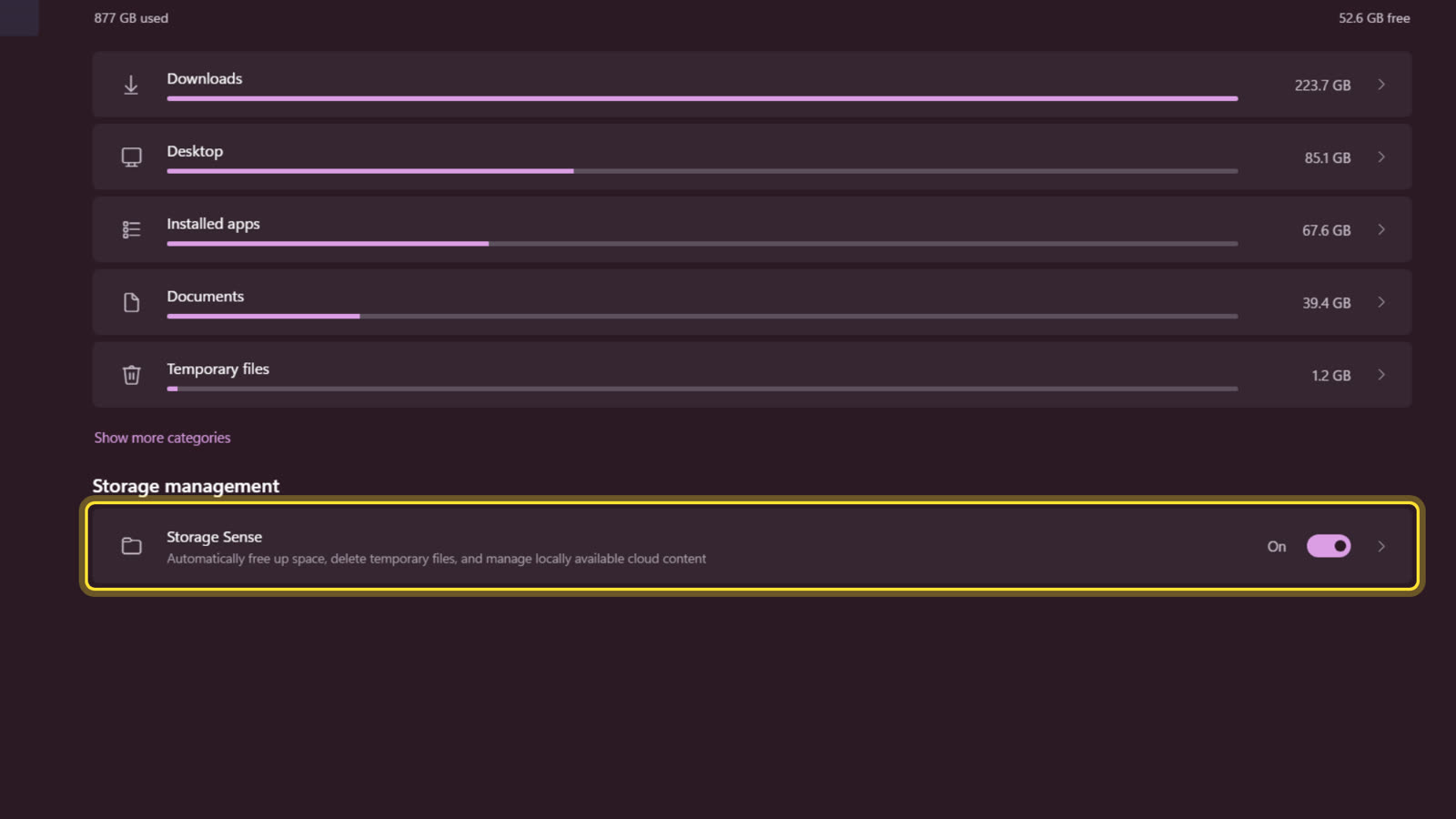
First, the Downloads rule ships set to Never. Downloads is the one folder in its scope where deletion could destroy something irreplaceable, so Microsoft made caution the default. Reasonable design, but it means the single largest space consumer on most machines is invisible to the tool everyone recommends. Nothing in the interface tells you this. The rule sits one click deep, set to Never, and the Storage page above it happily reports the folder's size without connecting the two facts.
Second, by default it waits for low disk space. The "Run Storage Sense" schedule defaults to running during low free disk space rather than on a calendar. So it is not continuously tidying; it is a fire brigade that shows up when the drive is nearly full. If you want it acting before things get tight, set the schedule to weekly or monthly in the same settings page.
WHAT THE DOCS DO NOT TELL YOU
Every guide says "turn on Storage Sense" as if that finishes the job. It does not, because Storage Sense ships with its most effective rule switched off: it will never touch your Downloads folder on its own. That default is protective, and it is also why a maintained machine can still fill its drive. The fix is not another cleanup tool. It is one dropdown, or ten minutes of sorting a folder by size.
Why not just install a cleaner app?
Because the numbers above show there is nothing for it to find. Third party cleaners hunt the same temporary files Windows already manages, worth 1.2 GB here, and they will not delete your Downloads for the same reason Microsoft will not: they cannot know what matters. The categories where the real space lives, Downloads, Desktop, Documents, are decisions only you can make, and File Explorer sorted by size is the whole toolkit that requires. A cleaner app adds a background process to save you from the folder it is equally afraid to touch.
The option nobody offers: move it instead of deleting it
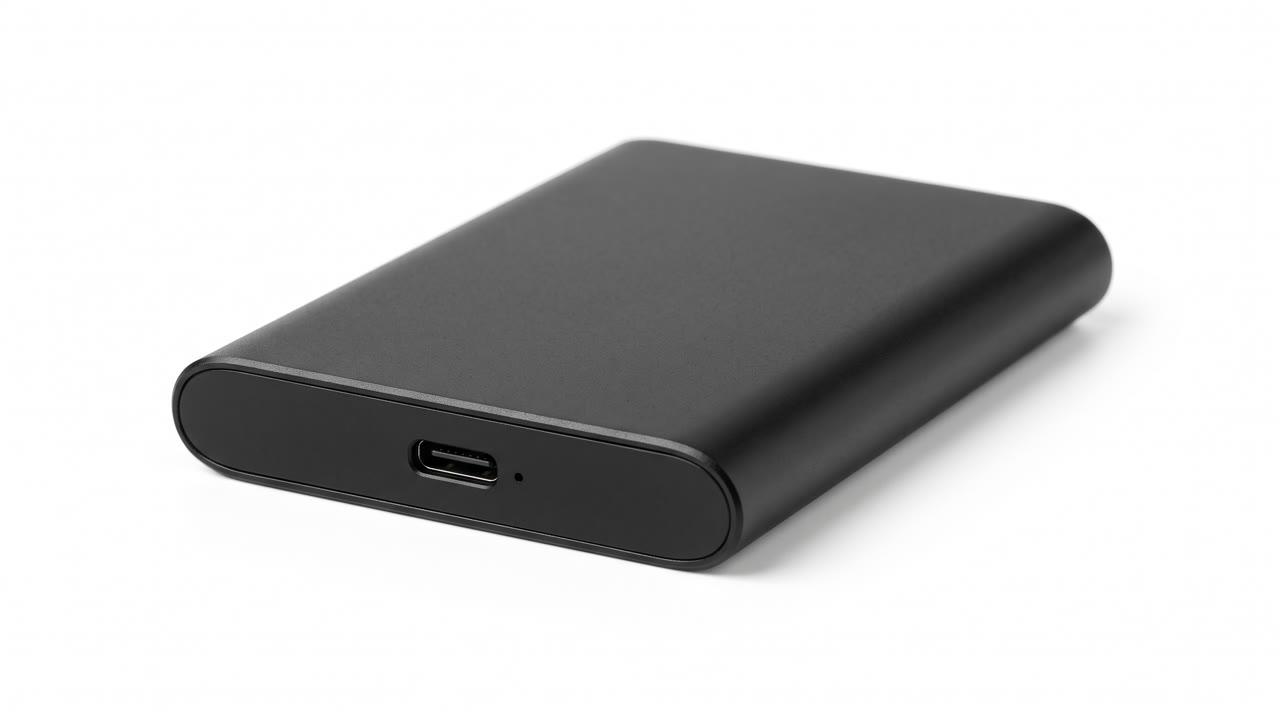
If the thought of deleting anything in Downloads makes you nervous, there is a third path between hoarding and deleting: drag the whole backlog onto an external drive. A portable drive holds years of old installers and archives, the files still exist if you ever need one, and your system drive gets its quarter-terabyte back today. Ten minutes of copying beats an afternoon of deciding file by file.
If it did not work
If the Storage page shows huge use under Other or the categories never finish calculating, restart once and reopen the page. And if the drive fills again within days, check whether a game library or a backup tool is writing into a folder Storage Sense does not manage.