Why Your iPhone Has Two Different Call Screens
THE ANSWER
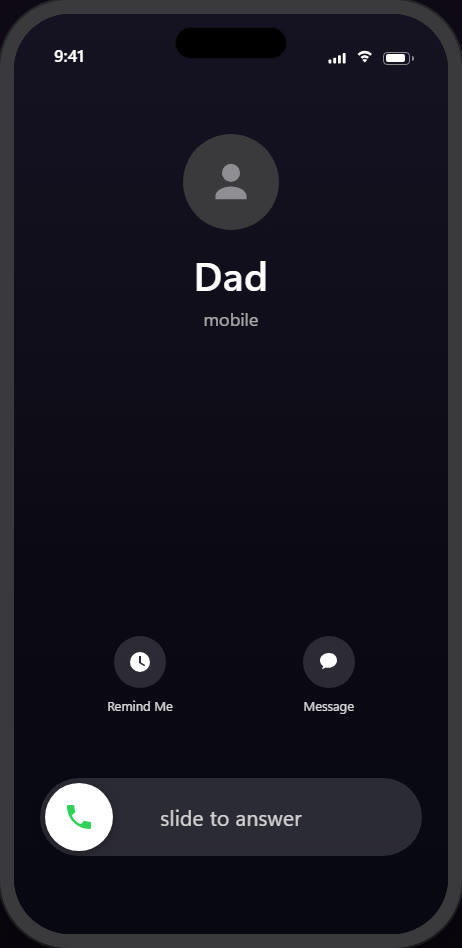
It depends on whether your iPhone is locked. Locked, a call takes over the whole screen with a slide to answer slider. Unlocked and in use, the call is a banner at the top with buttons. To make every call take over the screen, open Settings › Apps › Phone › Incoming Calls and choose Full Screen.
A question about these two screens pulled over nine million views on X in two days, and it deserves the traffic: the two call screens look completely unrelated, they answer differently, and nothing on the phone ever tells you which one you are going to get.
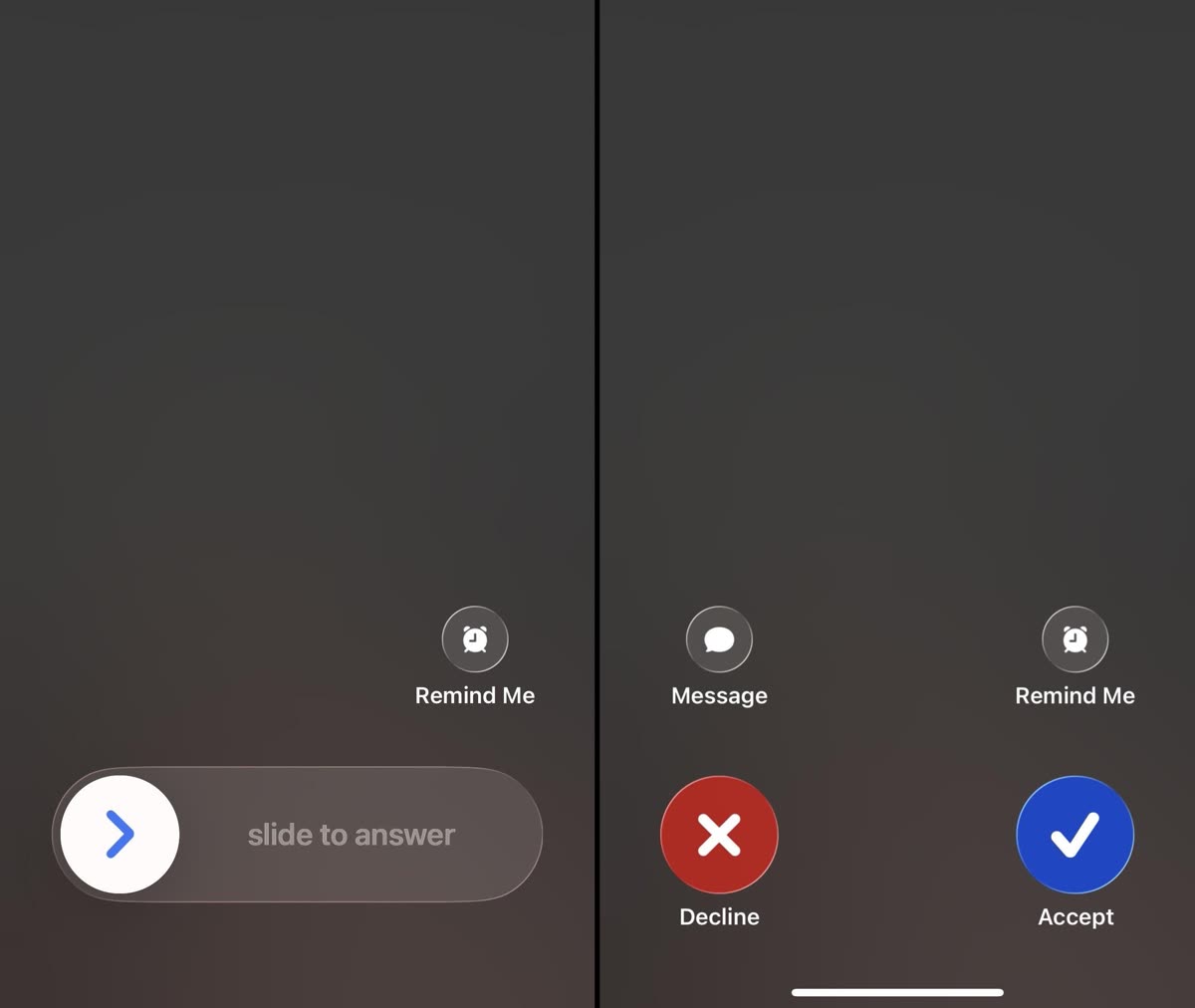
The two screens, side by side
When your iPhone is locked or sitting idle, an incoming call takes over the entire display: caller name, a dark background, and the slide to answer slider at the bottom.
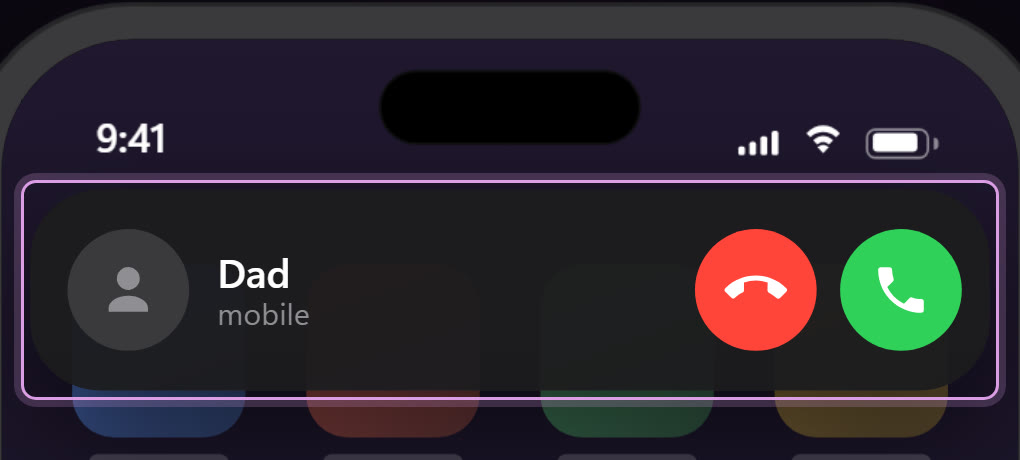
When you are actually using the phone, the same call arrives as a compact banner at the top of whatever you were doing, with a red Decline and a green Accept button. Tap the banner and it expands to the full call screen.
| Phone locked | Phone in use | |
|---|---|---|
| What you see | Full-screen call | Banner at the top (by default) |
| How you answer | Slide to answer | Tap the green Accept button |
| Why it differs | A slider takes a deliberate drag, which a pocket or a palm is unlikely to produce | A banner keeps the call from hijacking whatever you were doing |
| What the setting changes | Nothing, locked is always full screen | Banner or Full Screen, your pick |
| Where the setting lives | Settings › Apps › Phone › Incoming Calls | |
The setting, and the half it controls
Since iOS 14, calls that arrive while you are using the phone appear as a banner unless you change it. The switch is easy to miss because it lives under the Phone app's settings, not under Display:
- Open Settings › Apps › Phone
Since iOS 18, app settings live under Apps. On older versions, Phone sits directly on the main Settings list.
- Tap Incoming Calls
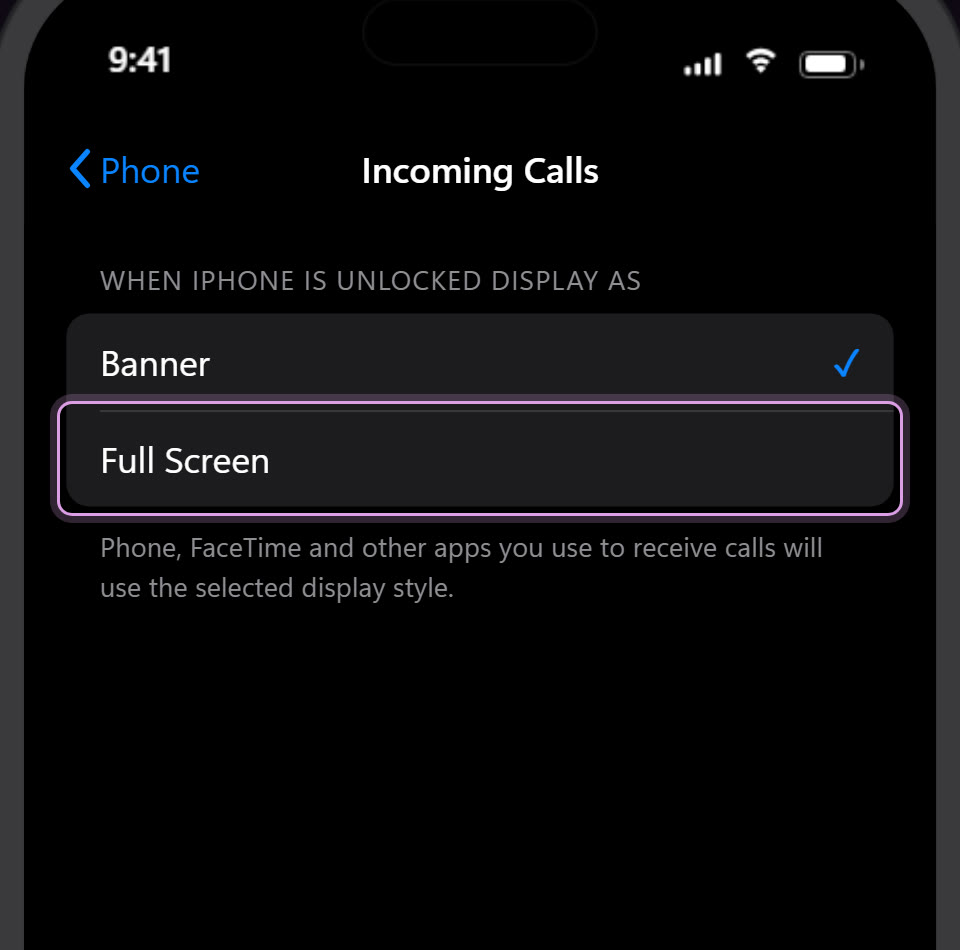
Two options: Banner and Full Screen.
- Pick your style
Choose Full Screen and every call takes over the display, even mid-scroll. Prefer calls to stay out of the way? Keep Banner.
The part everyone misses
The switch only works one way. Setting Full Screen makes every call take over. But setting Banner does not make every call a banner: a locked iPhone always shows the full-screen call, whichever option you picked. The banner only exists while the phone is unlocked and in use.
Apple does say this, exactly once, in the small print: the section header above those two options reads "When iPhone Is Unlocked Display As." Six gray words most people scroll straight past. The user guide never explains the behavior, and nothing anywhere connects it to the next mystery.
SAME RULE, DIFFERENT SYMPTOM
This is also why your iPhone sometimes says slide to answer and sometimes shows Decline and Accept buttons. The slider belongs to the locked full-screen call. The buttons belong to the banner and to the unlocked full-screen call. If you have ever hunted for the setting that changes the slider into buttons, this is it: there isn't one. Unlock the phone and the buttons appear.
So if the two call screens ever felt random: they never were. Locked gets the full takeover with a slider. In use gets the banner with buttons, unless you told it otherwise. One rule, one switch, and now both halves are yours.