Why Your iPhone Shows Two Different Wi-Fi Symbols
THE ANSWER
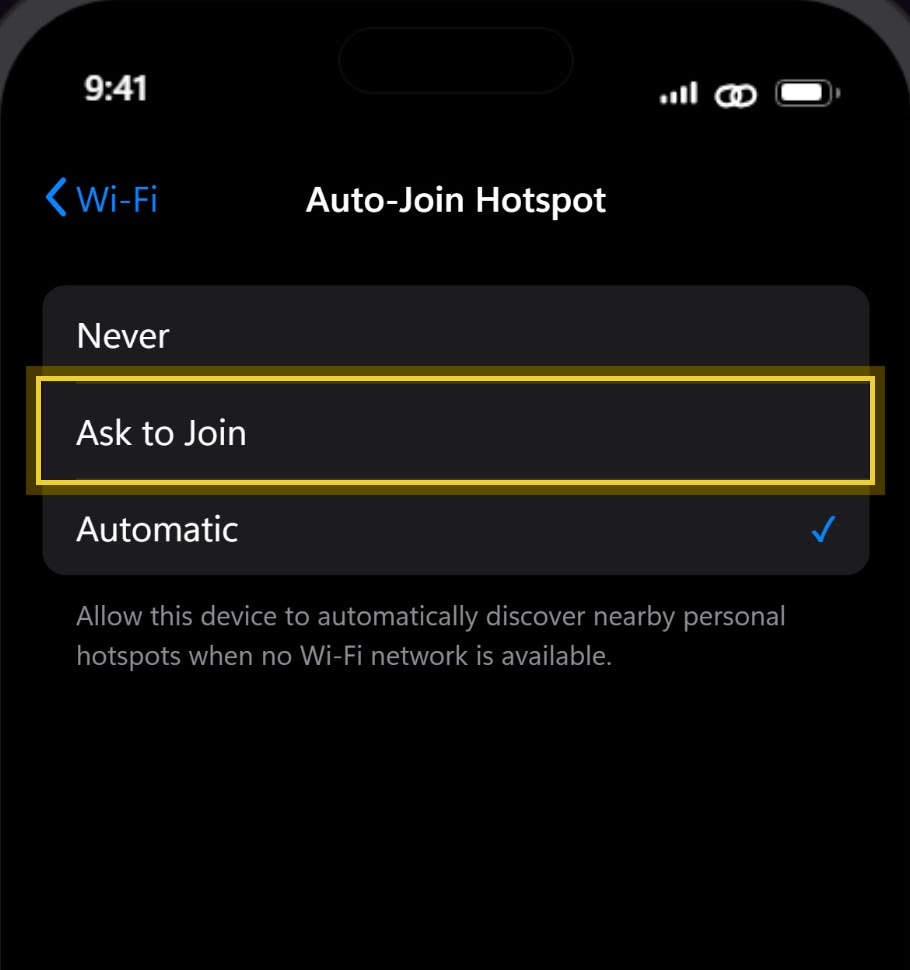
The fan is regular Wi-Fi. The chain link means a Personal Hotspot: you are on another device's cellular data, and your iPhone can switch to one without asking. To make it ask first, open Settings › Wi-Fi › Auto-Join Hotspot and choose Ask to Join.
A question about these two icons pulled millions of views on X in a couple of days, because the second symbol genuinely is not explained anywhere on the phone. It appears, the internet keeps working, and nothing tells you what changed.
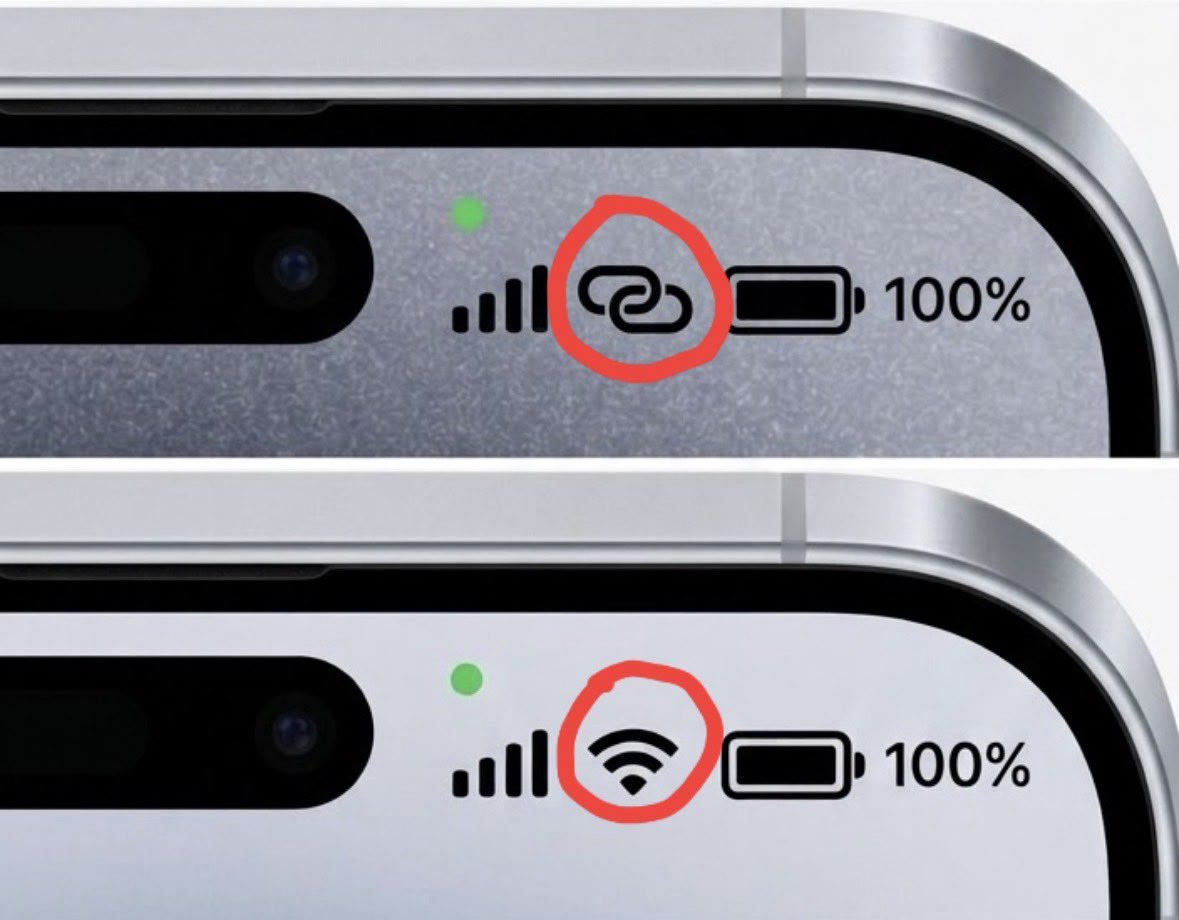
What each symbol actually means
The fan means what you think: your iPhone is on a Wi-Fi network. A router somewhere is doing its job.
The interlocking chain link means your iPhone is connected to a Personal Hotspot: another device, usually an iPhone or iPad, is sharing its cellular connection with you. You are not on Wi-Fi. You are on someone's phone plan.
| The fan | The chain link | |
|---|---|---|
| What it is | A Wi-Fi network | A Personal Hotspot from another device |
| Whose internet | The network's (home, office, venue) | Another phone's cellular plan |
| What it costs | Nothing extra | That phone's cellular data, against its cap |
| Battery impact | Yours only | Drains the sharing phone noticeably |
| When it appears | Whenever you join a network | When your iPhone connects to your own or a family member's hotspot |
| What to check | Nothing, this is normal | Whether you meant to be on it: Settings › Wi-Fi |
The part nobody mentions: it can switch by itself
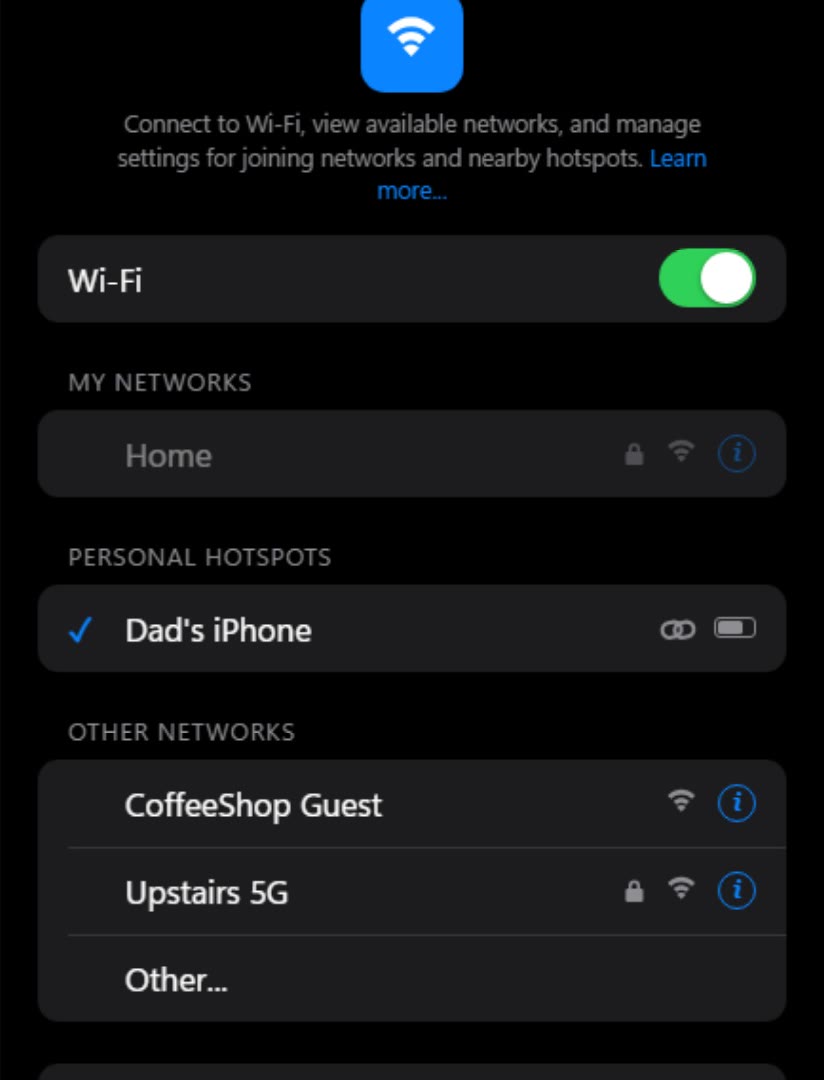
When your Wi-Fi drops, your iPhone can quietly jump to a nearby Personal Hotspot belonging to you or someone in your Family Sharing group, whenever that hotspot's owner is nearby. The setting behind this is called Auto-Join Hotspot, it lives at the bottom of the Wi-Fi settings page, and when it is set to Automatic, the only warning you get is that status icon changing.
Why a network you did not choose is a problem
With Auto-Join Hotspot the stakes are mostly money and battery: the data you use counts against the sharing phone's plan, and hotspot duty drains its battery. If a family member has a small data cap, a silent switch during a video call can eat a month's allowance in an afternoon, and nobody knows why until the bill arrives.
But the habit underneath is the bigger deal. Any network your phone joins without you noticing is a network you never got to judge. Apple only auto-joins hotspots that belong to you or your family, but the same not-noticing reflex is exactly what makes genuinely risky networks dangerous: open venue Wi-Fi, networks with familiar-sounding names run by strangers, and lookalike hotspots set up to imitate ones people trust. On a network you do not control, the operator can see which sites you visit and any unencrypted traffic, even though HTTPS protects the content of most modern pages. Knowing what your status icon means, and noticing when it changes, is the cheapest network security habit there is.
WHAT THE DOCS DO NOT TELL YOU
Apple documents the status icons and documents Auto-Join Hotspot, but nothing on the phone connects the two: the icon changes with no notification, no banner, and no mention of whose data you just started spending. The chain link in the status bar is the entire user interface for this event.
The fix
-
Read the status icon
Fan: a Wi-Fi network. Chain link: a Personal Hotspot, meaning another device's cellular data.
-
Check which network you are on
Open Settings › Wi-Fi. The connected entry has a checkmark; hotspots carry the chain icon.
-
Open Auto-Join Hotspot
It sits at the bottom of the Wi-Fi page. The options are Never Ask to Join Automatic
-
Set it to Ask to Join
Your iPhone still offers a nearby hotspot when Wi-Fi is unavailable, but it asks first instead of switching silently. Never stops it offering at all.
If it did not work
If you do not see Auto-Join Hotspot, the device may be managed by a work or school profile, or there is no hotspot-capable device signed in to your iCloud or Family Sharing group. And if the chain keeps appearing when you expect Wi-Fi, your actual Wi-Fi network is dropping; the hotspot is the symptom, not the cause.