How to Stop Windows 11 Search Showing Web Results
THE ANSWER
Right click the Start button, open Terminal (Admin), and run this one line: reg add HKCU\Software\Policies\Microsoft\Windows\Explorer /v DisableSearchBoxSuggestions /t REG_DWORD /d 1 /f Then restart (or sign out). Start search shows only what is on your PC. There is no switch for this in Settings.
Tap the Windows key, type weather, and before Windows shows you anything on your own PC it offers you five Bing searches. Type something that isn't on the PC at all and you get nothing but Bing. This week a post asking Microsoft to never, ever show anything that isn't on the computer picked up about forty thousand likes, which is a fair measure of how many people want the switch below.
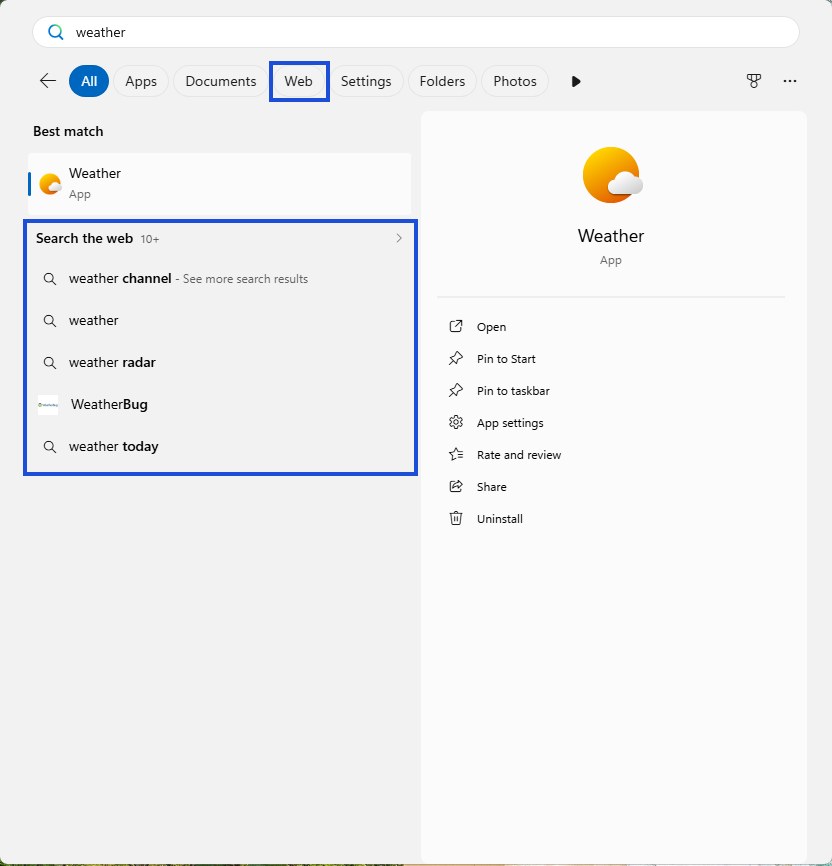
The switch exists. It's one registry value and a restart, and it works on Home and Pro. The reason so few people find it is that it isn't in Settings, it isn't named for the job, and half the guides that mention it skip the one step that makes it take effect.
Turn it off: the one line
- Skip the Settings page. It's the trap
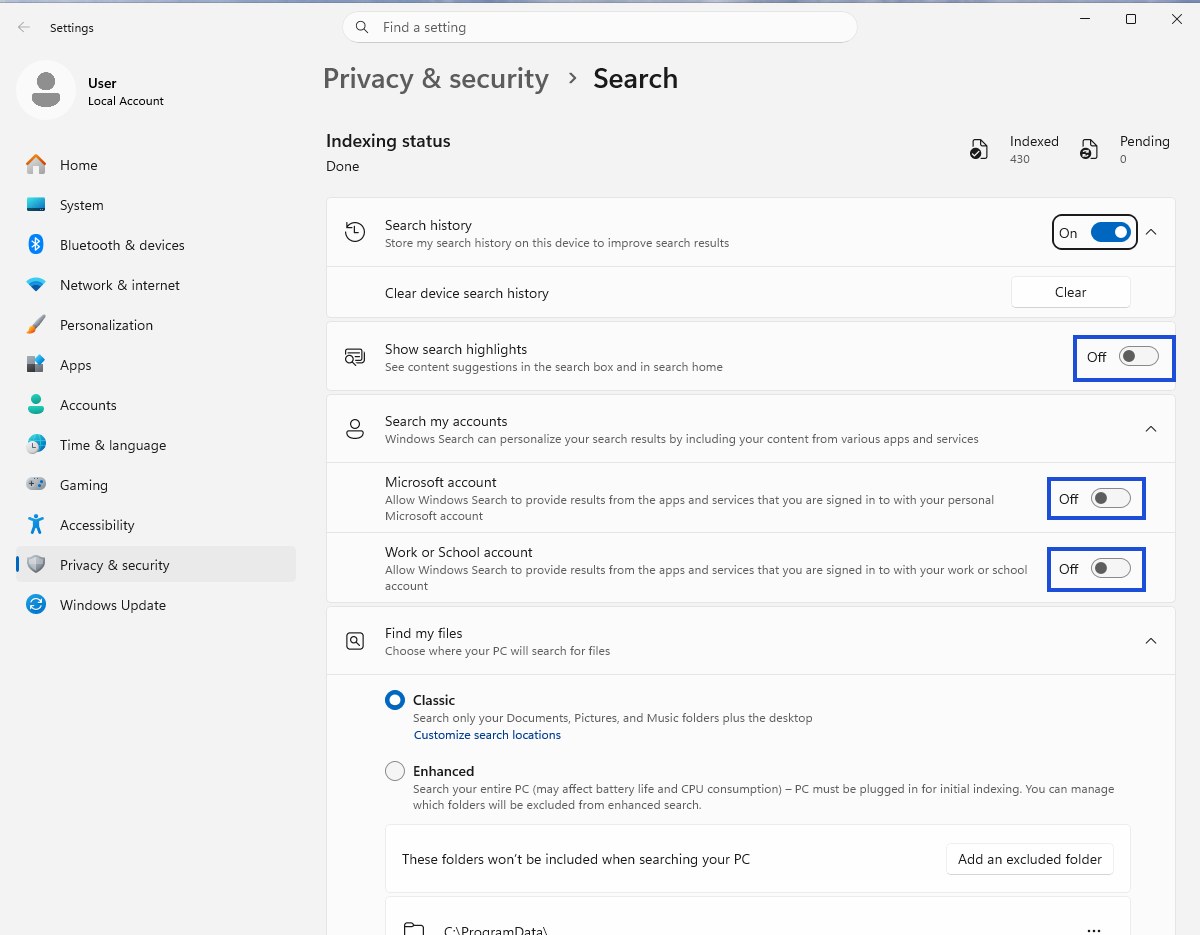
Settings › Privacy & security › Search looks like the place. It has Search history, Show search highlights, Search my accounts with a Microsoft account and a Work or School account toggle, and Find my files. Turn highlights off and both account toggles off, then type weather again: Search the web is still there. Nothing on this page controls web results, on 24H2 or 25H2.
- Open Terminal as administrator
Right click the Start button (or press Win + X) and choose Terminal (Admin). Click Yes on the User Account Control prompt. This does need the admin version even though the value goes under your own user account: HKCU\Software\Policies is admin-writable only, and a normal Terminal answers ERROR: Access is denied.
- Paste the line and press Enter
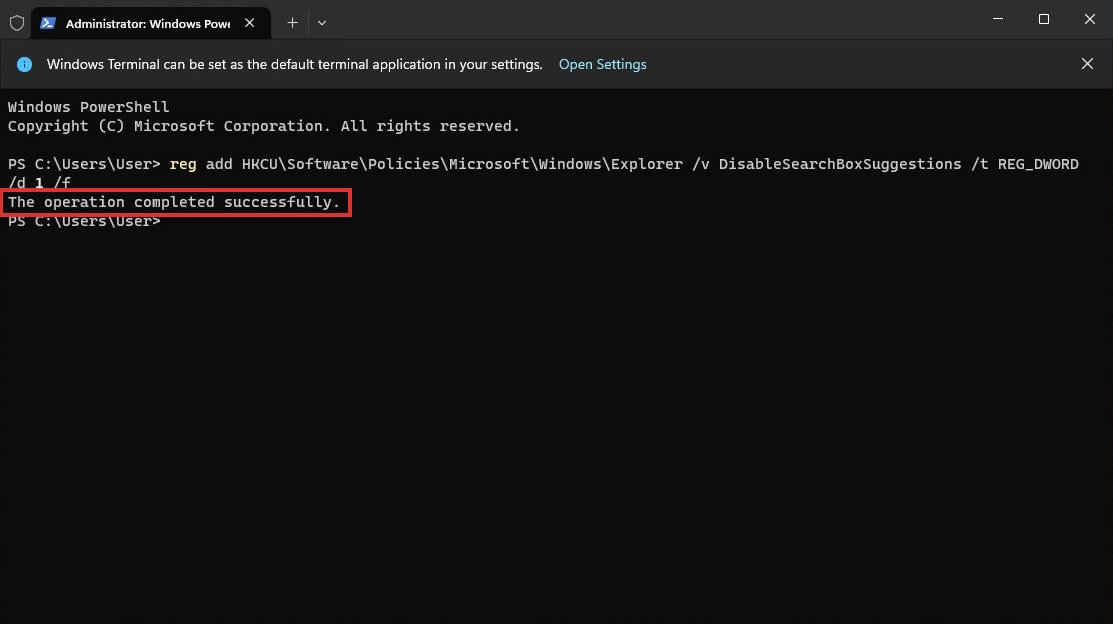
reg add HKCU\Software\Policies\Microsoft\Windows\Explorer /v DisableSearchBoxSuggestions /t REG_DWORD /d 1 /f
The reply is The operation completed successfully. That's the whole change: one DWORD value named DisableSearchBoxSuggestions set to 1.
- Restart the PC, or sign out and back in
Not optional, and not "restart Explorer". The search flyout is its own process and it reads this value only when it starts. More on that below, because it's the step that makes people think the fix failed.
- Check it
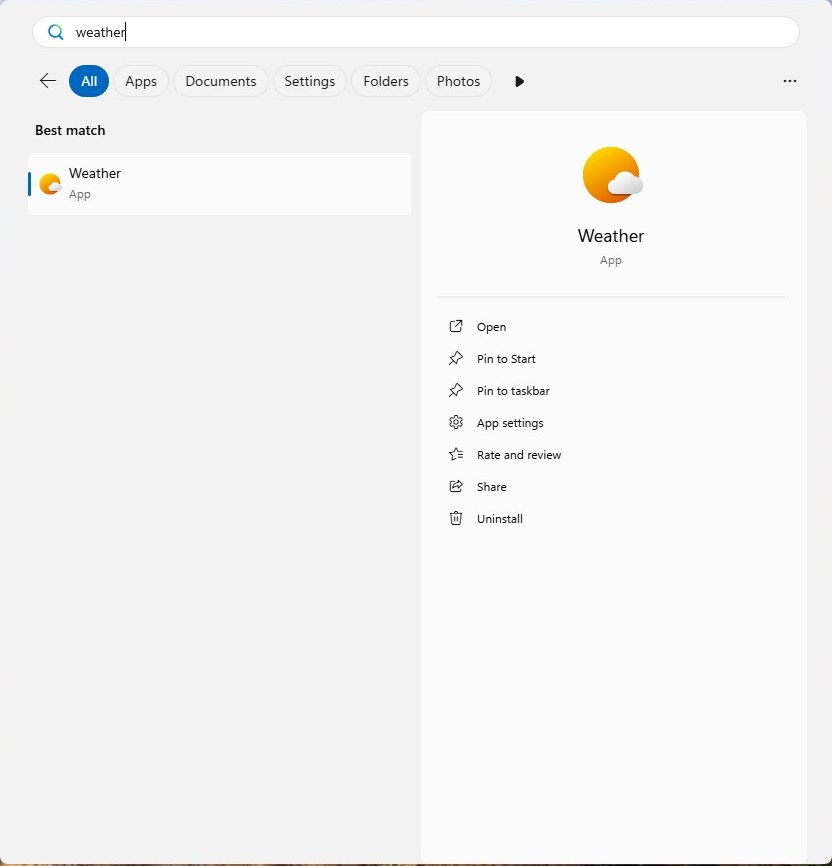
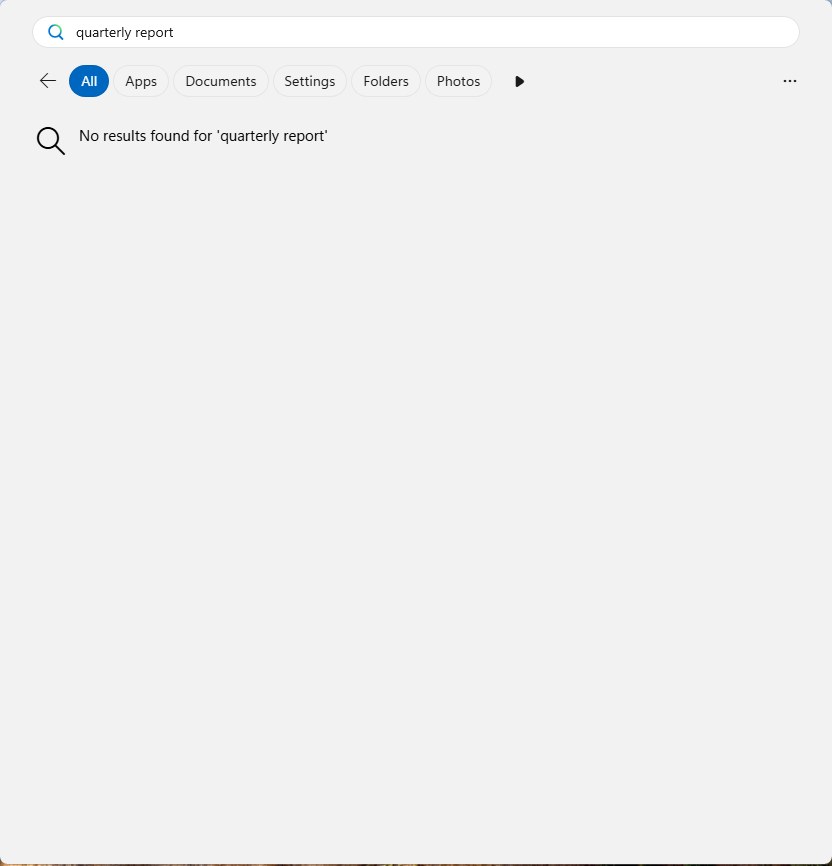
Windows key, type weather. The Weather app, and nothing else. The Web filter is gone from the filter row. Type something that isn't on the PC and you get No results found instead of a trip to Bing.
Why it looks like it failed
If you have tried this before and nothing changed, this is almost certainly why. Search in Windows 11 isn't part of Explorer anymore. The flyout is a separate process, SearchHost.exe, and it reads this value once, when it starts. In our test the value did nothing live, and nothing after restarting Explorer from Task Manager either. Web results disappeared only after SearchHost was restarted or the PC rebooted.
RESTARTING EXPLORER DOES NOTHING
Sign out, or restart the PC. Half the guides for this end with "restart Explorer", which is the right advice for most shell tweaks and the wrong advice for this one. If you set the value and Bing is still there, you haven't restarted the process that reads it.
Why nobody finds this switch
The value is a File Explorer policy. Microsoft documents it as Turn off display of recent search entries in the File Explorer search box, in User Configuration › Administrative Templates › Windows Components › File Explorer, from WindowsExplorer.admx. Read the official description and nothing in it says Start, Bing, or web. It happens to switch off web suggestions in Start search as well, and that is the part everyone actually wants.
There is one documented side effect, and it's minor: File Explorer stops suggesting your past searches in its own search box. If you rely on that history, it's the trade.
The Group Policy route, if you're on Pro
Same value, different door. Run gpedit.msc, go to User Configuration › Administrative Templates › Windows Components › File Explorer, open Turn off display of recent search entries in the File Explorer search box, set it to Enabled, then restart. Home doesn't ship the Group Policy editor, which is why the registry line is the lead here: it does the same thing on every edition.
The policy that is named for the job is Enterprise only
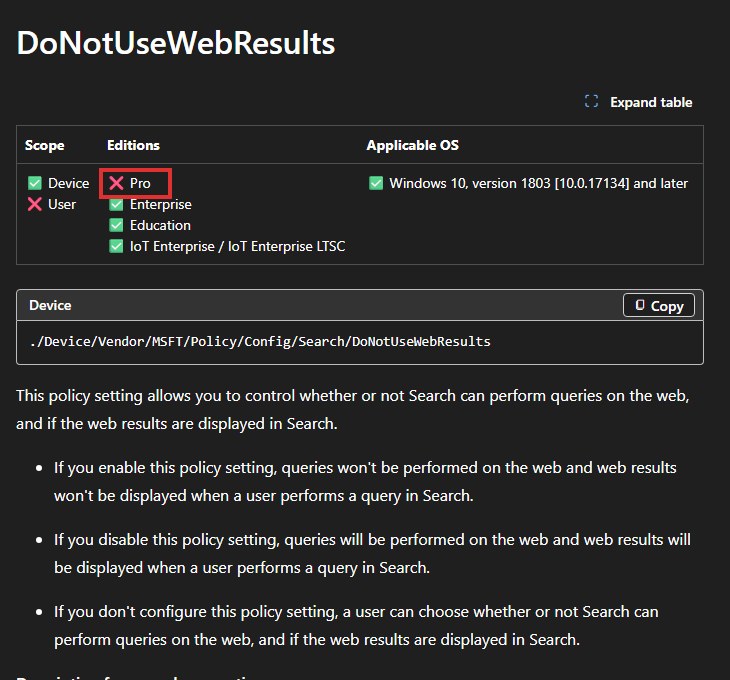
Microsoft does have a policy called Don't search the web or display web results in Search (DoNotUseWebResults, in Search.admx). Read the fine print on its documentation page: it is supported on Enterprise, Education and IoT Enterprise. Pro is crossed out, and Home isn't in the table at all. So the one setting with the right name is the one most people can't use, and the one that works is filed under File Explorer with a name that never mentions the web.
The older trick still works, and it doesn't need admin
Before the policy value became the standard answer, the usual fix was a different value under your user hive, and a lot of guides now say it stopped working on Windows 11. On 25H2 it still worked for us. In a normal Terminal, no admin needed:
reg add HKCU\Software\Microsoft\Windows\CurrentVersion\Search /v BingSearchEnabled /t REG_DWORD /d 0 /f
Then restart, same as before. Our test set CortanaConsent to 0 in the same key alongside it, which is how most older guides write it. The result was identical to the policy route: no Search the web block, no Web filter.
Why lead with the policy value, then? Because it is the one Microsoft documents by name, it is what Group Policy writes underneath, and reports through 2025 and 2026 say it survives feature updates better. If you're on a machine where you can't get an admin prompt, BingSearchEnabled is the line to use.
The four routes, side by side
| Route | Where | Needs admin | Editions | Windows versions | Survives updates? |
|---|---|---|---|---|---|
| Registry policy: DisableSearchBoxSuggestions = 1 | Terminal (Admin), one reg add line | Yes (Policies branch) | Home, Pro, Enterprise | 21H2 and later; verified on 25H2 | Yes, the most durable per 2025 and 2026 reports |
| Group Policy: Turn off display of recent search entries in the File Explorer search box | gpedit.msc, User Configuration › Administrative Templates › Windows Components › File Explorer | Yes | Pro, Enterprise, Education (Home has no gpedit) | 21H2 and later | Yes, same value as the registry route |
| Registry: BingSearchEnabled = 0 | Normal Terminal, one reg add line | No | Home, Pro | Worked on 25H2 in our test; widely reported broken on some earlier Windows 11 builds | Reported flaky across feature updates |
| Settings toggle: Web Searches | Settings › Privacy & security › Search › Show suggested search results | No | All, once it ships | 26H2 preview builds only, from build 26300.8772 | Not shipped as of September 2026 |
A real switch is coming, but not yet
Microsoft has said web results will be turnable off in "fewer than three clicks", without the registry, Group Policy, an EU region or LTSC (Windows Latest, June 18, 2026). In Windows 11 26H2 Insider preview builds, from build 26300.8772, that is a Web Searches toggle under Show suggested search results on the same Privacy & security › Search page that has no switch today (Pureinfotech, July 14, 2026). It is not on 24H2 or 25H2 as of September 2026, and our 25H2 test machine confirms it. Until it ships, it's one line and a restart.
Undo it
Open Terminal (Admin) again and delete the value:
reg delete HKCU\Software\Policies\Microsoft\Windows\Explorer /v DisableSearchBoxSuggestions /f
Then restart or sign out. The Search the web block and the Web filter come straight back. We tested the round trip: on, gone, deleted, back.
Every screen on this page is a real capture from a fresh Windows 11 Pro 25H2 install (build 26200.8037) running in a virtual machine, taken September 3, 2026. The voice in the video is synthetic.
One line, one restart, and search is yours again.