How to Turn On Hibernate in Windows 11
THE ANSWER
Open Control Panel › Power Options › Choose what the power buttons do. The Hibernate checkbox is grayed out, so first click Change settings that are currently unavailable at the top of the page. Then check Hibernate – Show in Power menu and click Save changes. Hibernate appears in your power menu straight away.
Your power menu has Sleep, Shut down and Restart. Hibernate is on the same machine right now. Windows just does not list it. It is not a download, not a registry hack, and not a feature Microsoft removed. It is one checkbox, hidden behind an admin link that most people scroll straight past.
What hibernate actually does
Sleep keeps your open work in memory and sips a trickle of power to hold it there. Hibernate writes that same memory to your disk and then powers the machine off completely. Zero battery drain, and when you come back, every window, tab and document is exactly where you left it.
That is the trade in one line: sleep is fast but drinks battery, hibernate is slower but drinks none.
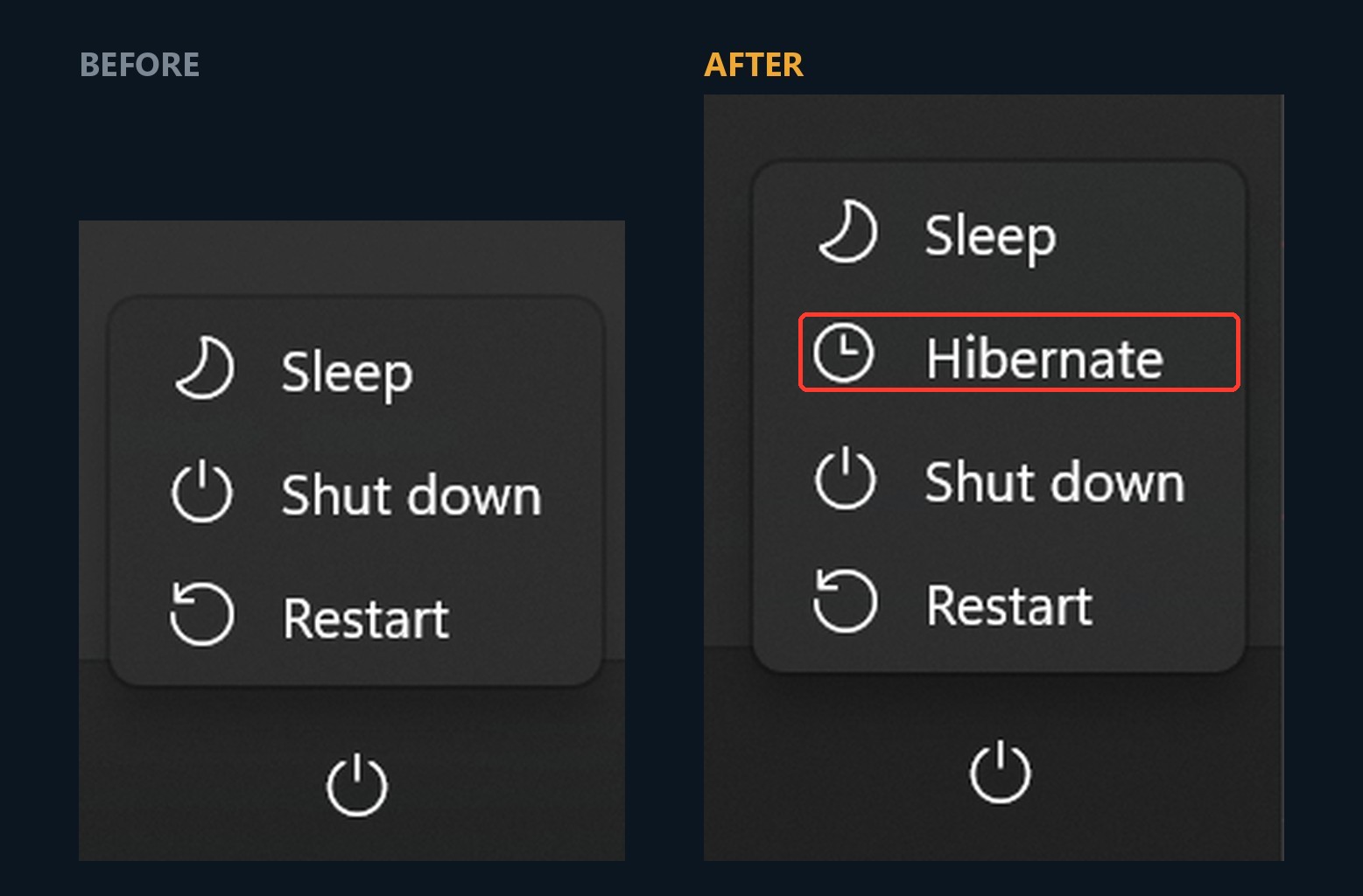
Turn it on: the five clicks
- Open Control Panel
Press the Windows key, type Control Panel and open it. This switch does not exist in the Settings app. It only lives in the old Control Panel.
- Click Power Options
In Large icons view it is right there in the grid. In Category view it sits under Hardware and Sound.
- Click "Choose what the power buttons do"
It is the first link in the left sidebar.
- Click the admin link, the step people miss
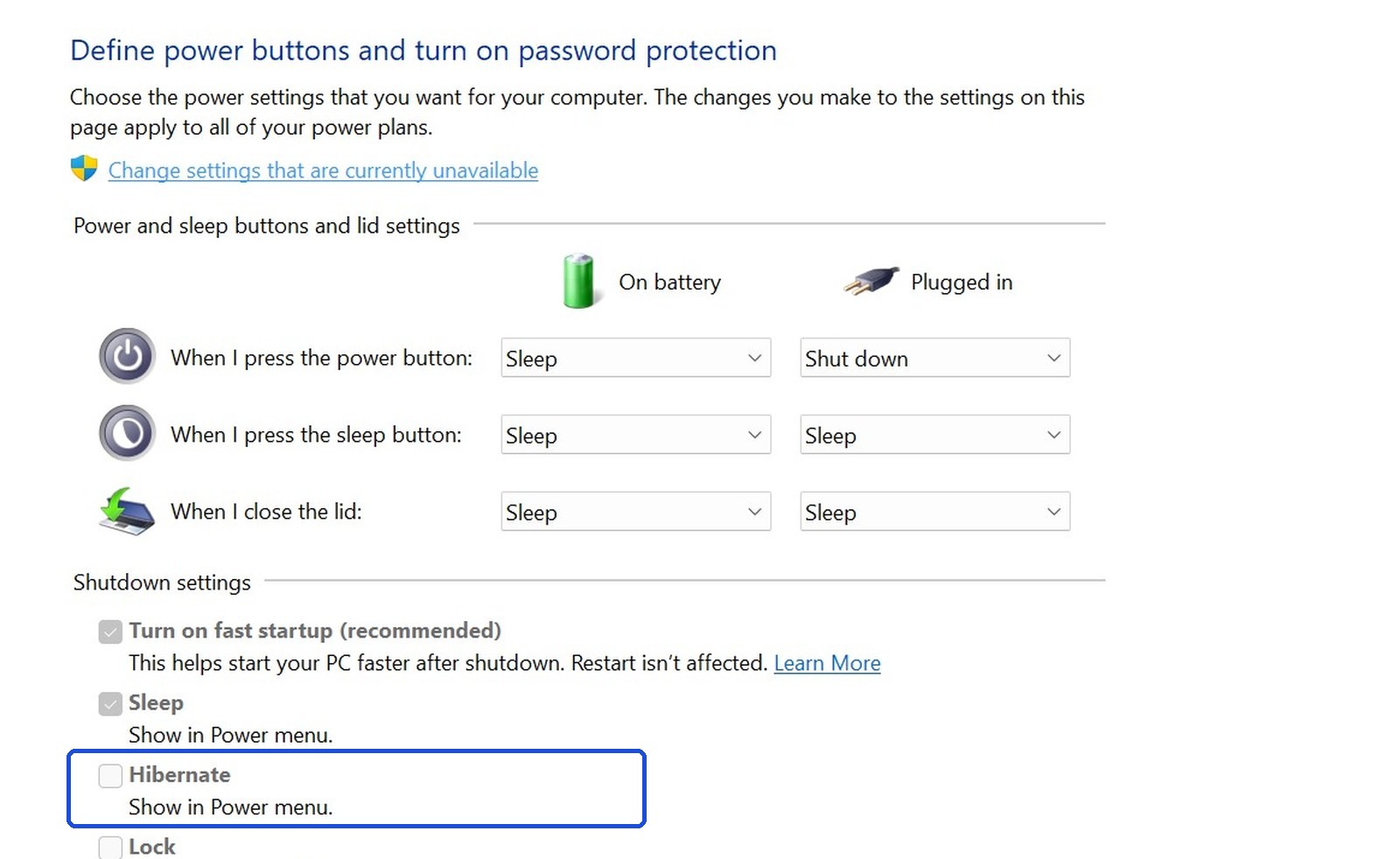
Look at the Shutdown settings and you will see Hibernate grayed out. It stays that way until you click Change settings that are currently unavailable, the shield-icon line above the settings.
- Check Hibernate, then Save changes
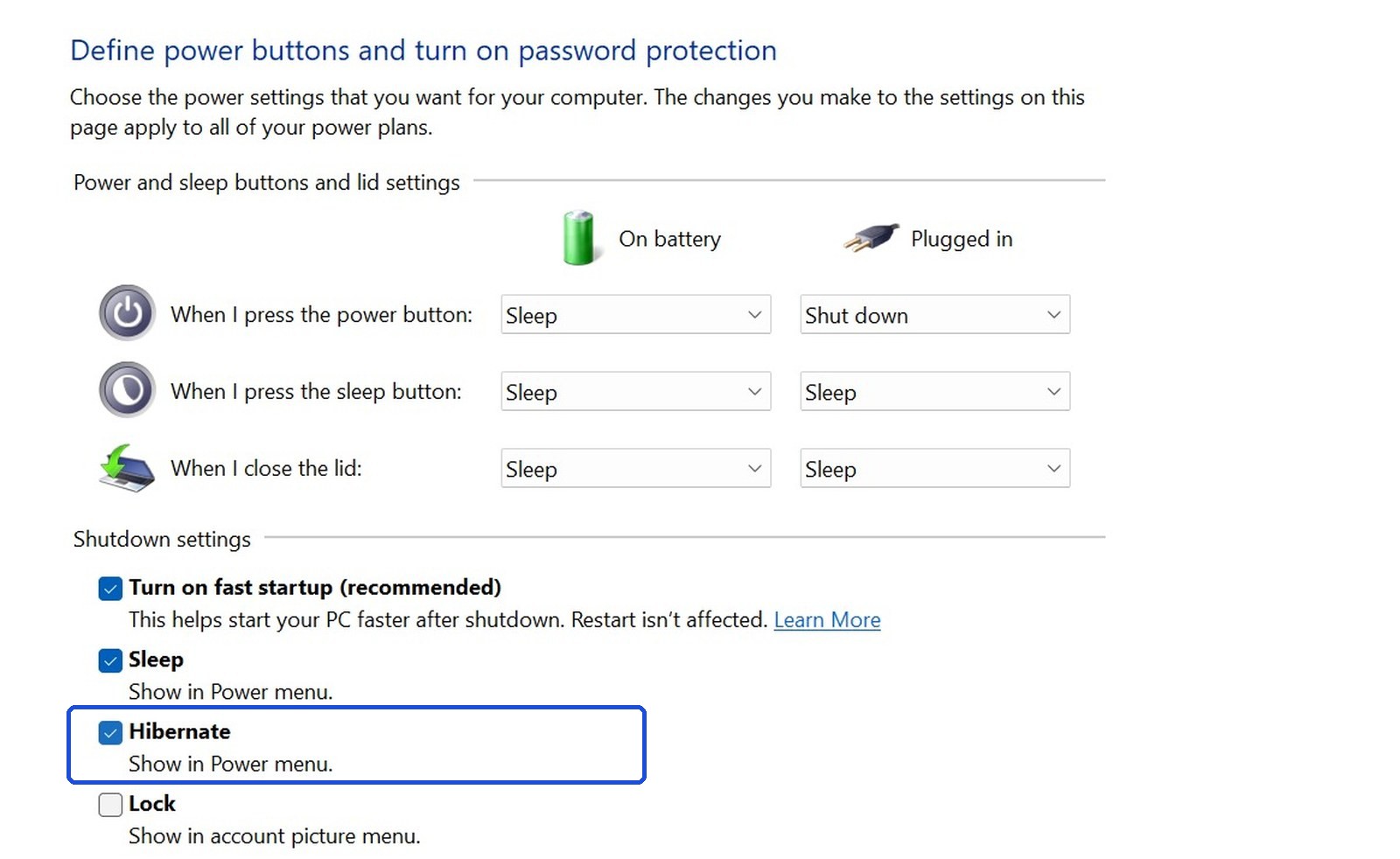
The checkboxes go live. Check Hibernate – Show in Power menu and click Save changes. Open your power menu again and it is there.
Prefer the terminal?
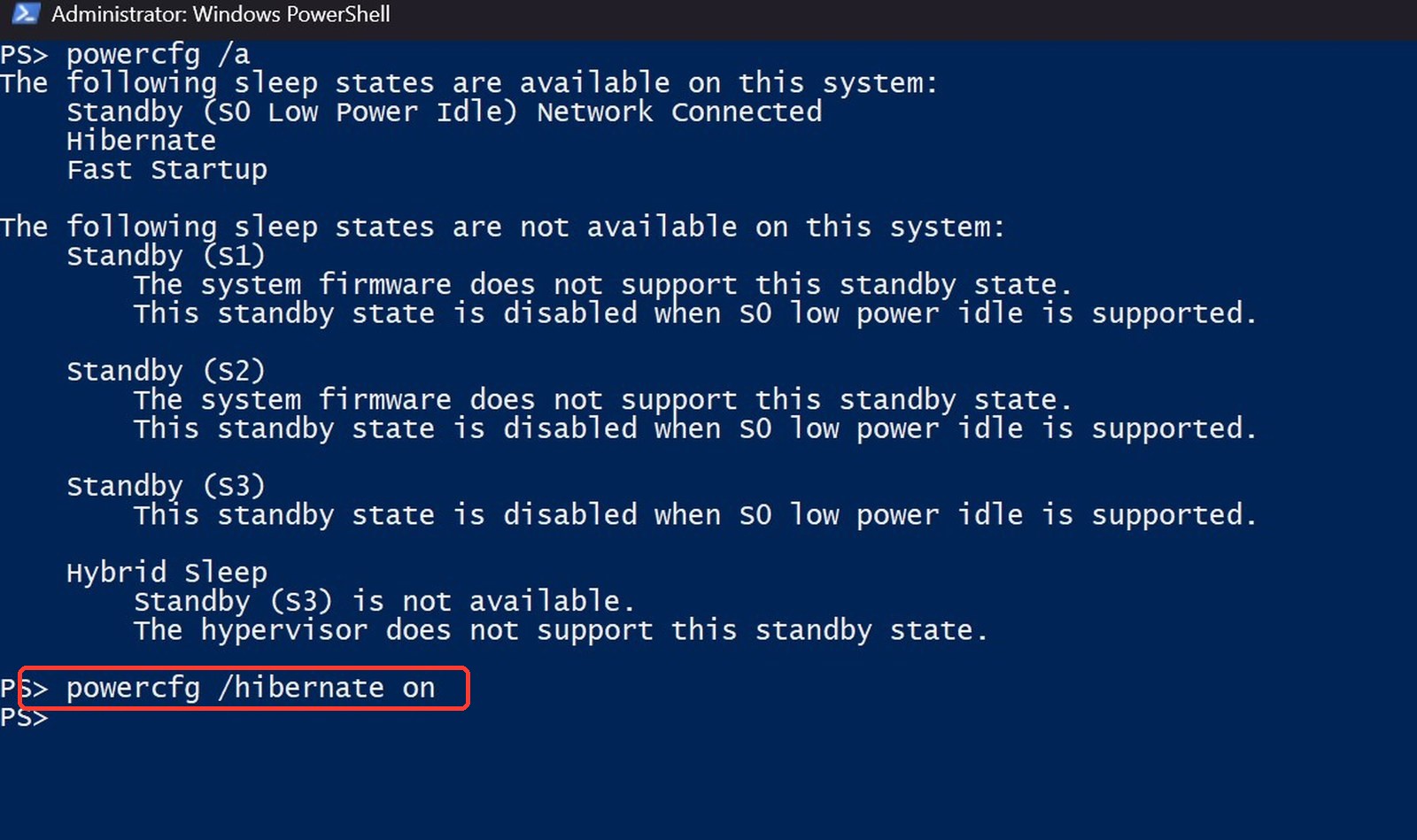
One command does the plumbing. From an administrator PowerShell or Terminal window:
powercfg /hibernate on
That enables the hibernate capability itself. It is what you need if hibernate is missing from your machine entirely rather than just hidden from the menu. And powercfg /a will tell you which situation you are in.
Sleep vs hibernate vs shut down
| Sleep | Hibernate | Shut down | |
|---|---|---|---|
| Your open work | Held in memory | Written to disk | Closed |
| Power used | A trickle | None at all | None at all |
| Coming back | Instant | A few seconds | Full boot, empty desktop |
| Disk cost | None | hiberfil.sys, a few GB | None |
| Best for | An hour away from the desk | Overnight, flights, a laptop in a bag | You are done for the day |
When hibernate is the right call
A laptop going in a bag for the weekend. A desktop before a storm. And the everyday one: picking up last night's work exactly where you left it, without the machine bleeding to zero overnight. Any time sleep would drain the battery flat, hibernate is the better answer.
Why Windows hides it
Most modern laptops use Modern Standby, where sleep is supposed to be efficient enough that hibernate never comes up. So Windows leaves it out of the menu on those machines. It still works perfectly. It is just not invited.
There is a related piece of trivia worth knowing: Fast Startup, the setting right above Hibernate on that same page, is a mini hibernate for the system itself. That is why a cold boot feels quicker than it should.
The disk cost
Hibernate needs somewhere to put your memory, so Windows reserves a hidden file called hiberfil.sys, typically around 40 percent of your installed RAM. On a 16 GB machine that is roughly 6 GB sitting on the drive.
If you want the feature but not the full file, one command shrinks it:
powercfg /h /type reduced
ONE WARNING: DUAL BOOT
Hibernating locks your Windows drive. The partition is left in a state Linux treats as unsafe, so it will usually mount read only or refuse to mount at all. If you dual boot, leave hibernate off, or shut down properly before switching over.
If you just want it to stay awake
Worth separating, because people reach for the wrong tool: if your goal is to stop a laptop sleeping during a long job, that is not hibernate. That is PowerToys Awake, a free Microsoft utility with a single toggle that keeps the machine up until you turn it off.
Simple switch, hidden in plain sight. One checkbox, and your power menu finally has the option that was there all along.